
This guide is how to uninstall Mitel from your laptop in ONLY 8 steps!
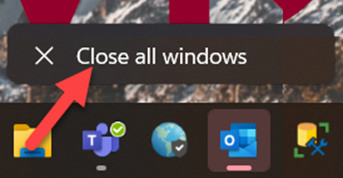
- If you have Outlook open, right click the Outlook icon in the task bar and click
“X Close all windows” (If you don’t have Outlook open skip to step 2)
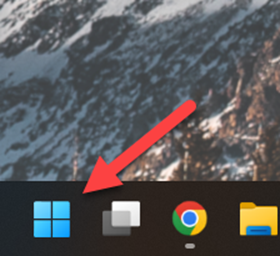
- Press the Windows button
- In the search bar type “Add or remove programs”

- Look for the “Add or remove programs” option and click on it

- Stroll down the list of apps and look for the 3 “Mitel” related apps and click one of the 3 dots

- Click “Uninstall” then it will ask it again so click “Uninstall” again

- A pop up will appear saying “Do you want to allow this app to make changes to your device?”, press “Yes” and let the uninstall finish
- Repeat steps 4 – 6 for the other two Mitel apps

Congratulations you have successfully uninstalled Mitel from your laptop!
Comments
0 comments
Article is closed for comments.