
This is going to be a quick guide on how to check/update your Adobe Acrobat.
- Click the Windows Icon at the bottom left-hand side of the screen.
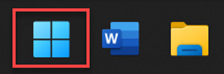
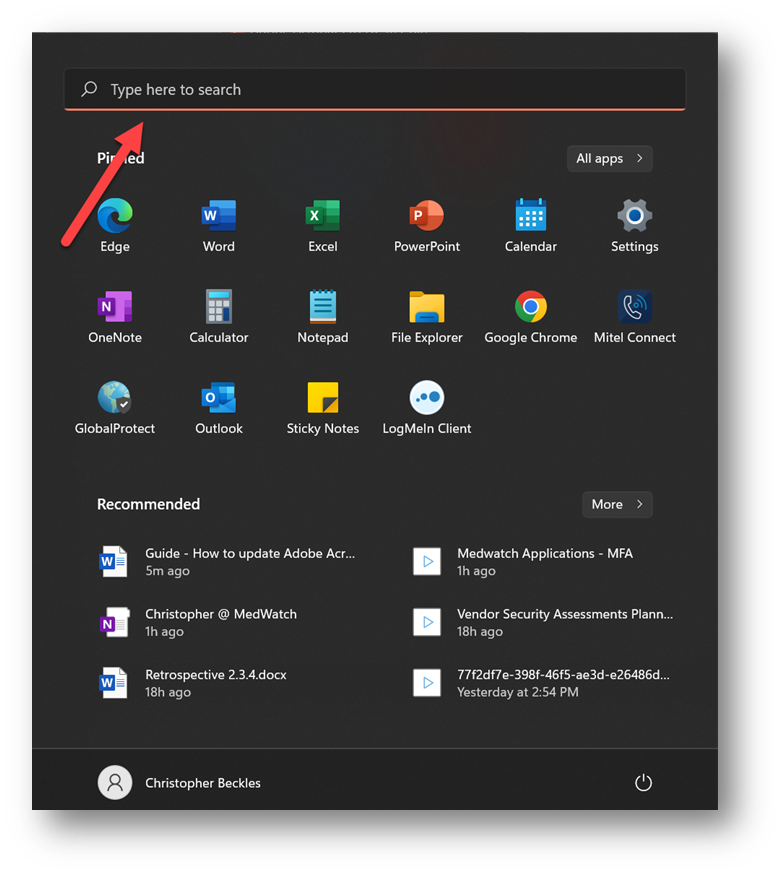
- Clicking the windows Icon will open up the start menu. When the start menu opens up, on the top of the screen, search “Adobe Acrobat.”
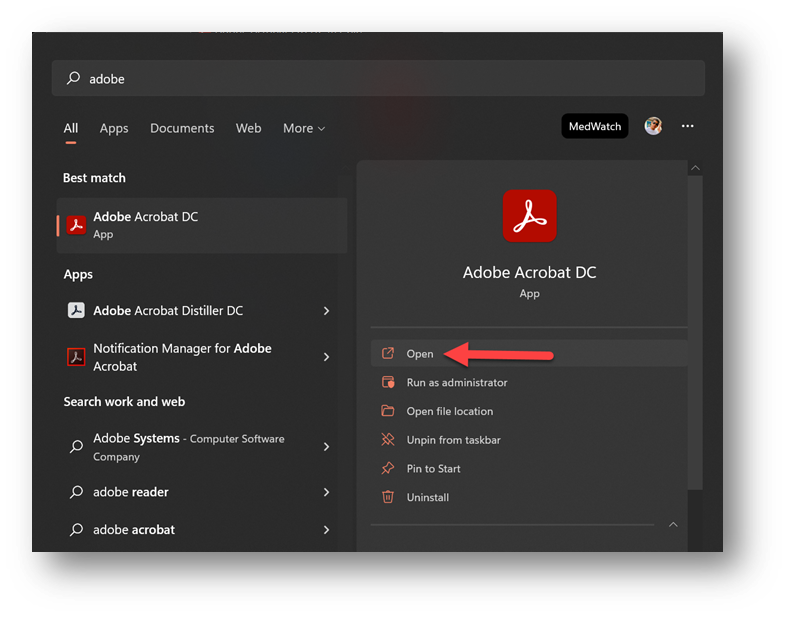
- After searching for Adobe, Click “Open.”
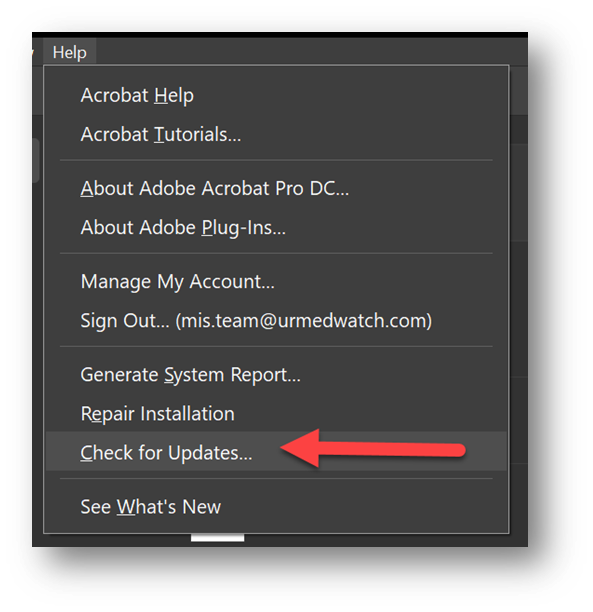
- After opening the app, click on the “Help” link on the top left-hand side of the screen.
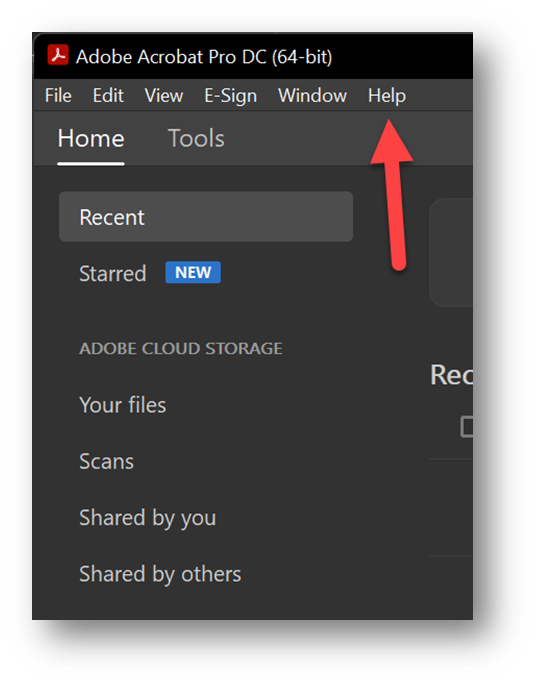
- After clicking the “Help” link, select the “Check for Updates” option.
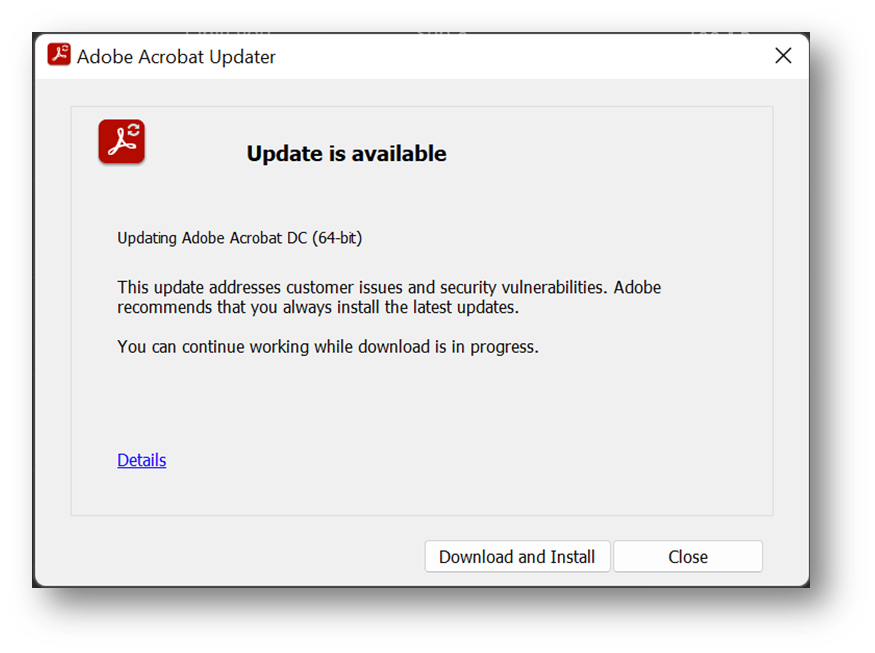
- After selecting that option, the software will search for any updates that you may not have installed. If it finds anything, you will see this:
- NOTE: If you are prompted to enter a username and password in order to do the update, please stop at this point and open a ticket so that the Help Desk can remote in and approve the update for you with their credentials. Yours will not work. Thank you!
- NOTE: If you are prompted to enter a username and password in order to do the update, please stop at this point and open a ticket so that the Help Desk can remote in and approve the update for you with their credentials. Yours will not work. Thank you!
- Click “Download and Install,” and Adobe will start updating (Please make sure that Adobe is closed before clicking “Download and Install”).
- In the event that you get this error message, please make sure that Adobe is closed, and then click “Retry.” If that doesn’t work, try restarting your computer and then restart this guide.

- In the event that you get this error message, please make sure that Adobe is closed, and then click “Retry.” If that doesn’t work, try restarting your computer and then restart this guide.
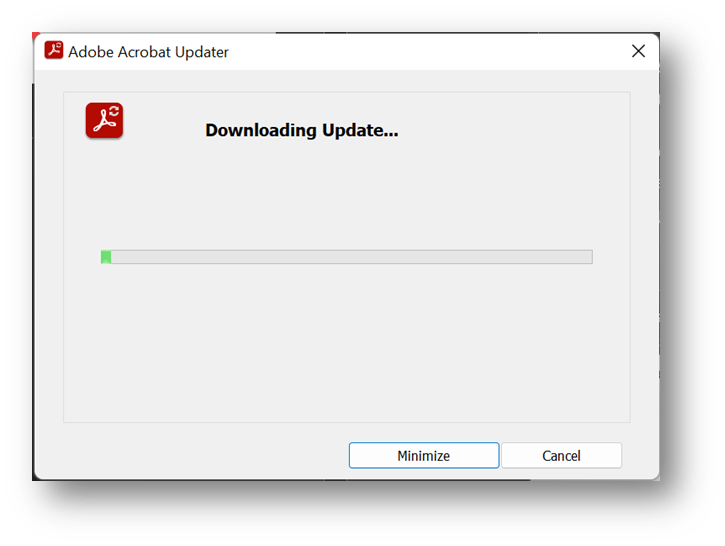
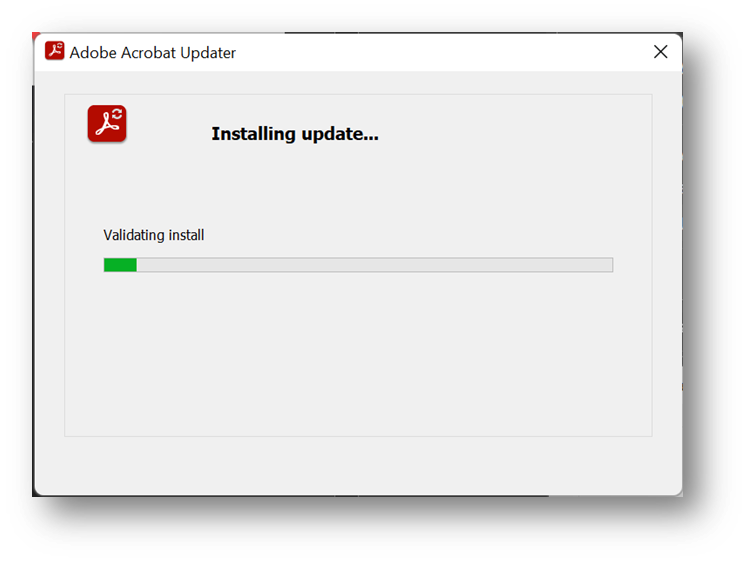
- After the update has been downloaded, it will then begin to install.
- After installing fully, you will be prompted with a message saying, “Do you want to allow this app to make changes to your device?”, click “Yes.”
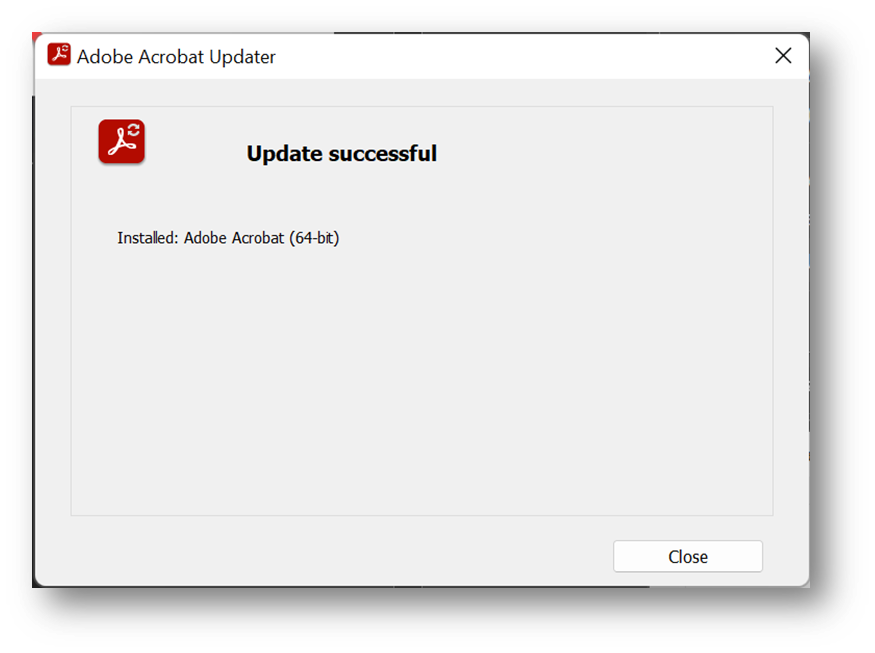
- After clicking “Yes,” you will see this message. Adobe has been updated successfully and you can close out the updater.
- Just to make sure that you have updated everything fully, follow steps 1-3 again. If after step three you see this message, you have updated Adobe to its latest version. This means you have completed this guide 😊.

Comments
0 comments
Please sign in to leave a comment.